Understand
Learn what the card communicates before changing anything in Salesforce.
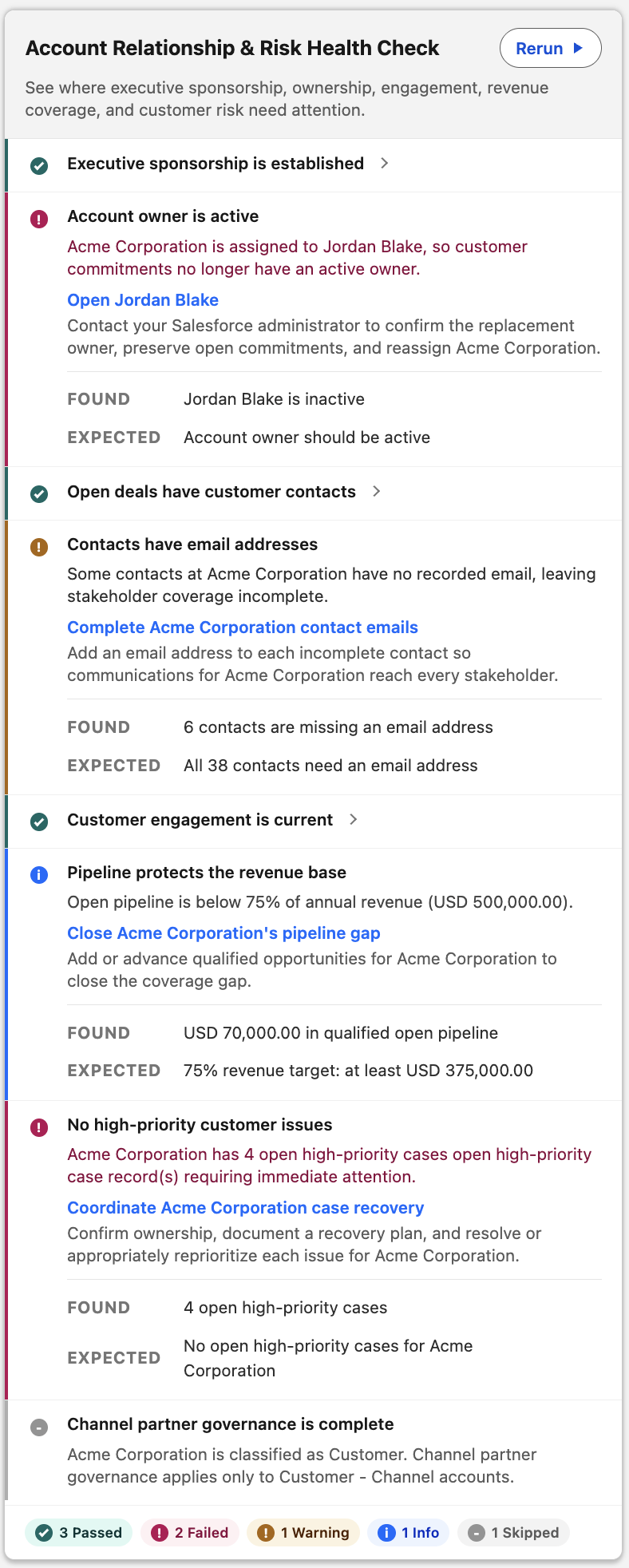
Record Health Check turns business rules into clear, actionable guidance on Salesforce record pages without changing record data or save behavior.
Guided path
Follow one focused sequence from understanding the card to configuring your first production-ready experience.
Learn what the card communicates before changing anything in Salesforce.
Install in a sandbox and explore working Checks across every evaluation type.
Create a useful Check, then place the experience where users already work.
Examples
Compare four ways to answer a business question about an Account. Each example shows why the method fits, what a user sees, and what to do next.
Both addresses are available from the Account and its parent, so a formula can compare them directly. No related-record query or custom Apex class is needed.
A difference in any billing-address field needs attention. An Account without a parent is skipped. Display formulas show the two addresses but do not determine Pass or Fail.
AND(BillingStreet = Parent.BillingStreet, BillingCity = Parent.BillingCity, BillingState = Parent.BillingState, BillingPostalCode = Parent.BillingPostalCode, BillingCountry = Parent.BillingCountry)Complete branch billing addressComplete parent billing addressThe information is on Cases related to this Account. A query counts the open Cases marked High priority, and the Check compares that count with the service team’s limit.
No matching Cases returns a count of zero, so this Check passes. Hidden records are excluded; missing required permissions may produce Unable to Check.
SELECT COUNT() FROM Case WHERE AccountId = {!record.Id} AND IsClosed = false AND Priority = 'High'Less than or equalFixed value: 3One query finds products on open Opportunities. Another finds products on won Opportunities. The Check passes when the two Product ID lists share at least one value.
Product names are illustrative; the Check compares Product IDs. In this example, no open-pipeline or purchase-history rows produce Skipped because that outcome is configured.
Product2IdProduct2IdLists overlapSkipThe decision combines several objects, a configurable activity window, and weighted scoring. A developer implements that logic in an Apex class; an administrator can then configure its threshold and parameters.
The class awards 25 points for each criterion, so possible scores are 0, 25, 50, 75, and 100. With an 80-point threshold, all four criteria must pass. Strategic Accounts that do not meet the applicability rule are skipped.
AccountStrategicReadinessCheck{"minScore": 80, "activityDaysBack": 60}ISPICKVAL(Type, "Strategic")Documentation
Find focused guidance for learning the basics, building Checks, operating in production, or extending the framework.
Resources
Go beyond the core package with optional extensions, reusable configuration patterns, presentations, and product demonstrations.